Build a line
You can build a line by hand, let the AI assistant build it, or mix both: whatever the assistant makes, you can move, change and undo by hand.
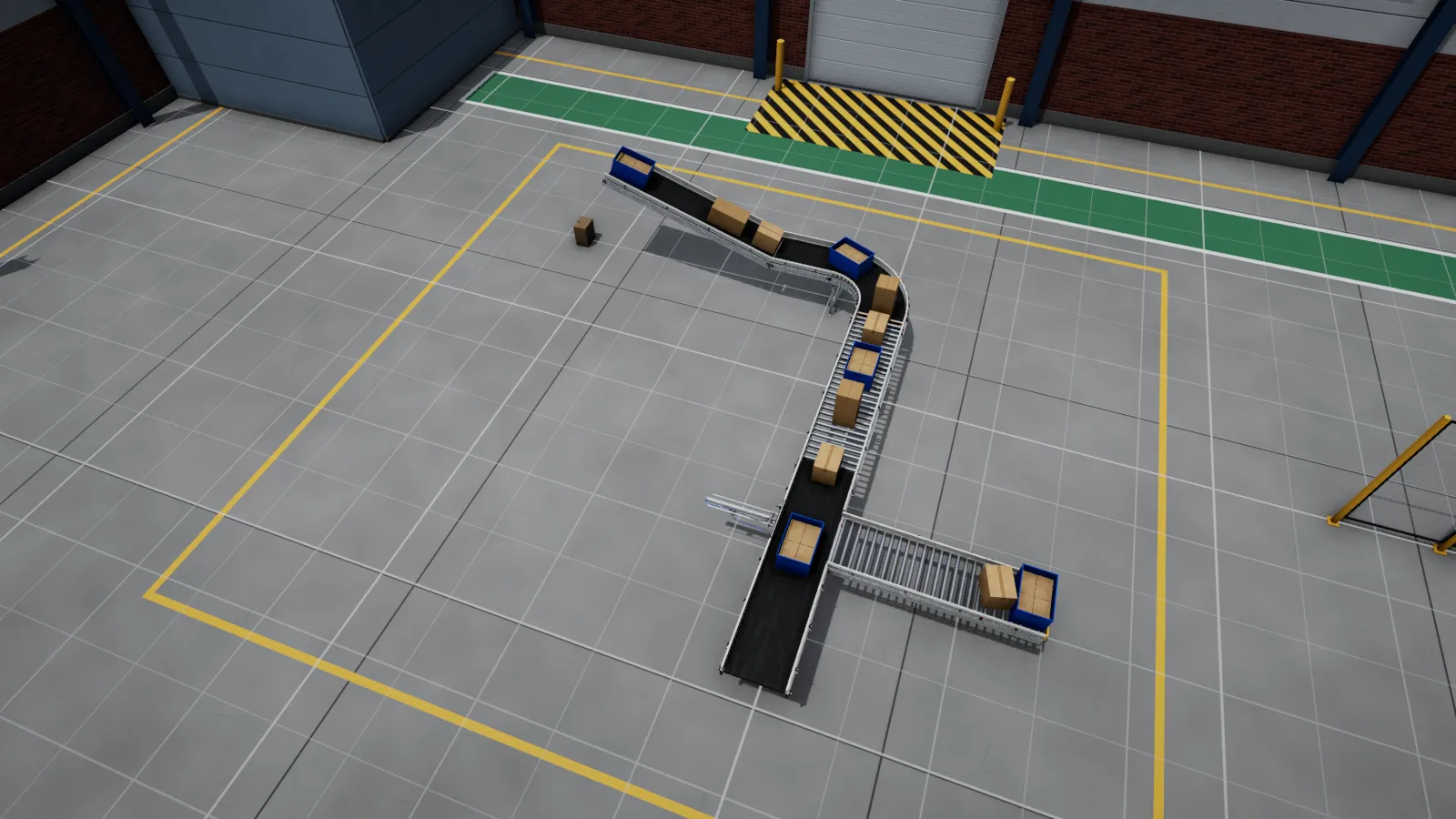
By hand
Section titled “By hand”- Drag a part from the Parts panel into the hall. Clicking a card instead places several in a row.
- Drop each conveyor at the free end of the previous one: it snaps on, lined up, with the small step real lines have. Curves and inclines snap the same way.
- Drop sensors, stoppers and pushers onto a conveyor, and buttons and stack lights onto a post, wall or control stand.
- Select a part to set it up in the Properties card: length, speed, drive, and so on. The card explains what each choice means for the PLC.
- Rename parts to match your PLC program: the name starts every signal of the part (
BeltA.RunFwd).
A conveyor cannot overlap another one, and nothing can leave the hall. The hall size is under Hall size… in the plant switcher.
Test it without a PLC
Section titled “Test it without a PLC”Click ▶ Run. In the Signals card, All conveyors forward starts every conveyor; click any output to force it on or off and watch the inputs change. The samples (Project ▸ Open sample…) have a demo program that runs them by themselves.
With the AI assistant
Section titled “With the AI assistant”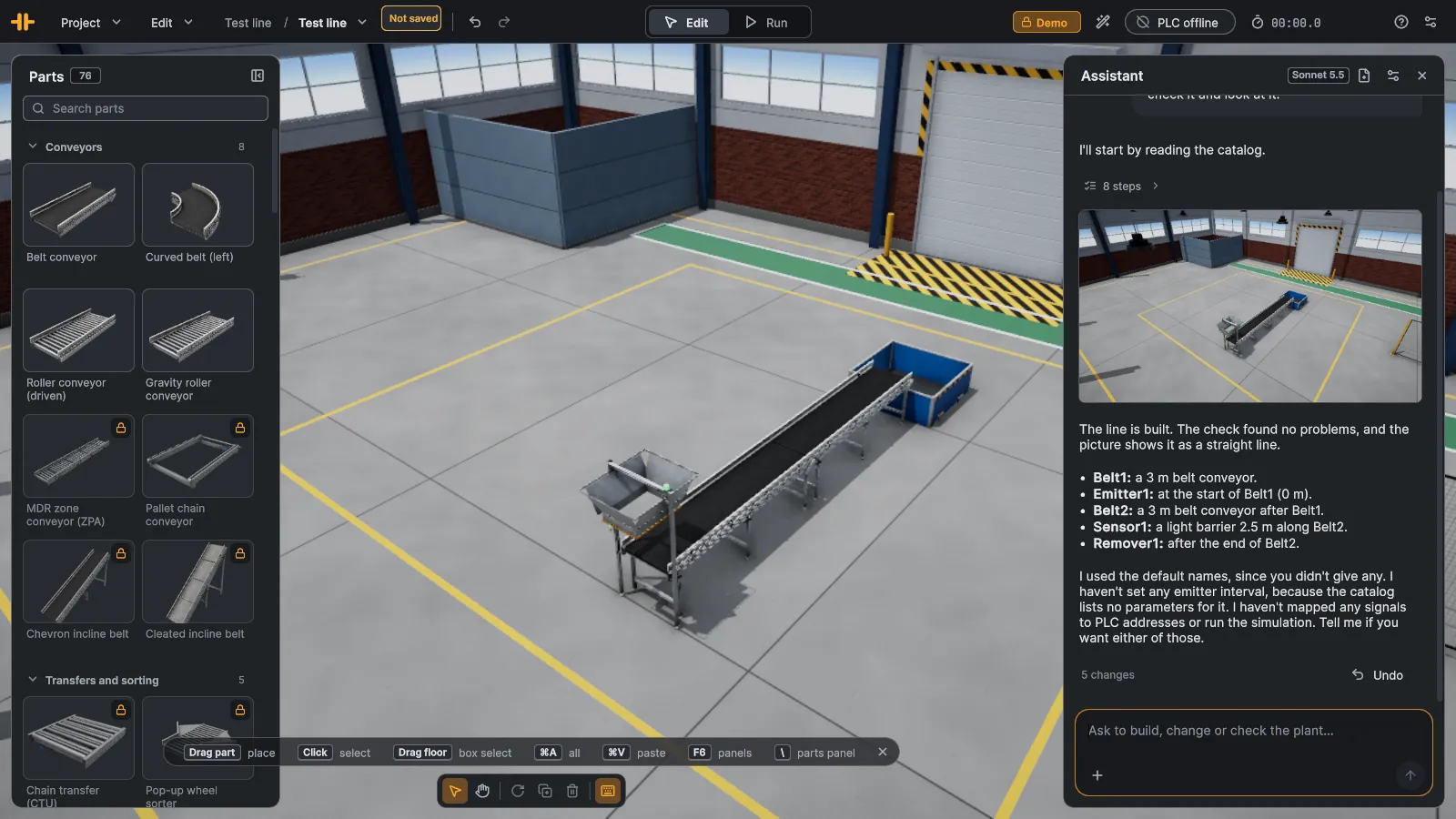
- Click the wand in the app bar (⌘J / Ctrl+J).
- The first time, Connect Claude with an API key from your Anthropic account. The key stays on this computer.
- Describe the line, for example “A sorting line with a barcode reader and three lanes”. Attach a drawing (PDF,
picture or DXF) or an I/O list (
.xlsx,.csv) with +, and it builds from that.
The assistant places and connects parts with the same rules as the builder and checks the plant when it is done. Each answer is one undo step. It does not run the plant, force signals or change the PLC connection unless you ask, and it never writes your PLC program.
Claude Desktop, Claude Code and other MCP clients can drive LineRig too: turn on Preferences › AI assistants › Allow AI assistants. The connector for them is coming with an upcoming release.
Project ▸ Save (⌘S / Ctrl+S). A project is a folder with one or more plants; zip it to share it. Next: Connect your PLC.